1. Why PDF Beats DOCX for Almost Every Application
Word files reflow unpredictably across macOS, Windows, Google Docs, and different font libraries—turning a tight one-page resume into an awkward two-page document on the recruiter's screen. A proper text-based PDF locks your layout identically everywhere.
2. Three Common PDF Pitfalls and How to Fix Them
Check for these issues right after downloading:
- Blurry text on zoom: Caused by screenshot-to-PDF exporters. Use vector PDF rendering (built into Lucky Resume for all 9 templates) so text stays razor sharp and selectable.
- A stray 3-line second page: Tighten wordy bullets first, then adjust page margins and section spacing inside the layout panel rather than shrinking body text below readable size.
- File exceeds upload limits (2–5 MB): Usually caused by an uncompressed multi-megabyte portrait photo. Resize photos before uploading or hide the photo when applying in photo-free regions.
3. Your 30-Second Pre-Send Checklist
Before hitting Submit:
- Highlight text inside the PDF to confirm it is real selectable text.
- Click every portfolio, GitHub, and LinkedIn link to verify they work.
- Rename your file cleanly: FirstName_LastName_Role.pdf.
- Save a JSON backup so updating your resume next quarter takes seconds.
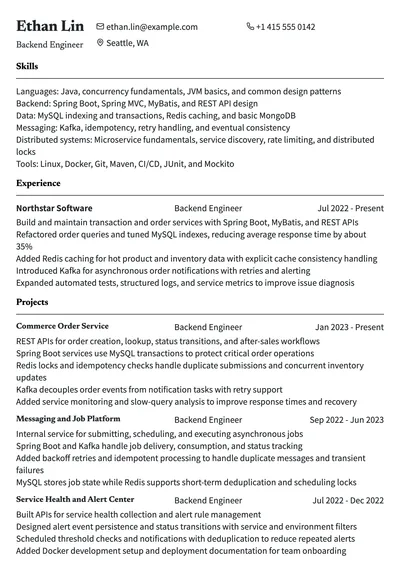 Classic Single-Column Resume Template
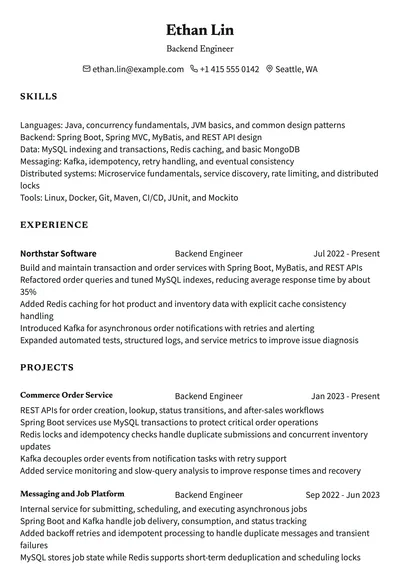 Minimalist Resume Template
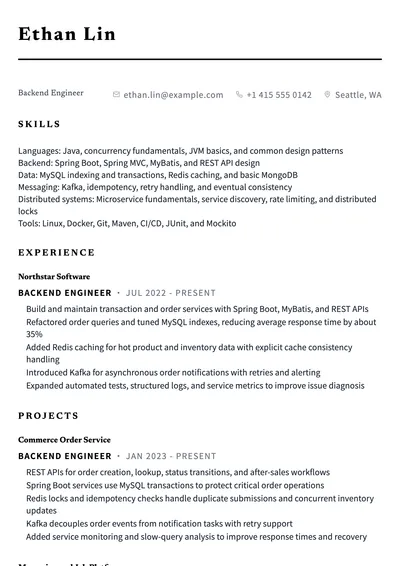 Editorial Magazine Resume Template